Most postcards are printed with two or more postcards per sheet of card stock and most postcard templates will correctly set the printer settings.
You can create different postcards with different addresses and greetings by using mail merge or by adding the information by hand. However, if you choose Multiple copies per sheet instead of Multiple pages per sheet in step 3 of the directions, you'll end up with each different postcard printing on its own sheet of paper instead of printing multiple personalized postcards on the same sheet.
-
Click File > Print.
-
In the Printer list, select the printer you want to use.
-
Under Settings, in the Pages drop-down list, select Multiple pages per sheet and the number in Copies of each page.
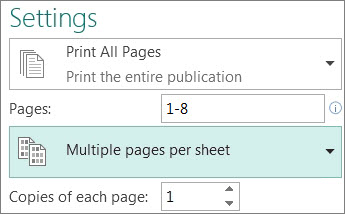
-
Click Print.
Tips:
-
Check the print preview to be sure that the pages will all fit on the sheet.
-
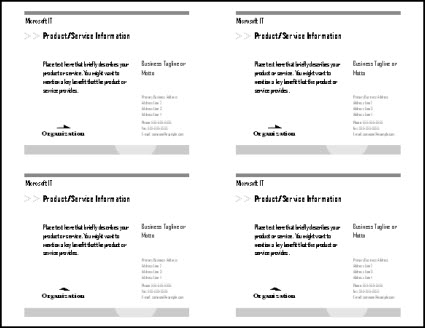
-
Also, if you are using Publisher 2010, 2013, or 2016, you can use the Front/Back Transparency slider,
 (in the upper right corner of the preview pane) to be sure that the front and back of the postcard line up correctly.
-